
A Screen Designer written in Java |
©1997 Art Sulger
|
|
A Screen Designer written in Java |
©1997 Art Sulger
|
Layout Managers
The "Write Once, Run Everywhere" Java philosophy could lead to unusual
looking screen designs were it not for layout managers. Buttons, entry
fields, list boxes and so on, that we use to build our screen designs,
look and function differently on the different operating systems used on
the Net. Even changing screen resolutions on your own screen can alter
the look of an application, so imagine what happens when your java applet
is running on the Net. An OS/2 'Choice' widget, for instance, looks and
acts differently than does the Solaris one. The OS/2
widget opens a single selection list when pressed, whereas the
Solaris widget opens a complete list
of available choices. The Solaris choice widget automatically sizes itself
to the largest entry in the list, but the size of the OS/2 widget is determined
by you at widget creation time.
Because of differences like these, Java uses 'Layout Managers'. These are software algorithms to arrange the widgets inside the dialogs and windows. You tell the dialog or window container which one of several layout objects should control the widgets. The Layout Manager then decides how much space to apportion each widget, where to place it, and what to do when the container changes size. With some of the layout managers you can provide additional parameters when you add the widget to the container, but it is the layout manager's job to ensure that the widget is displayed in a manner appropriate to the monitor and underlying operating system. The Java Developer Kit, or JDK, supplies four of these layout managers, and you can also write your own (see How Do I Create a Layout Manager, by Cliff Berg, Dr.Dobb's Journal Sep. 96). Java's layout managers span from a few very simple and easy to use algorithms to a complex and difficult to describe GridBagLayout manager. What follows is a brief description of each layout manager, but nothing is better than an actual example. I wrote a Java application to draw various widgets in a container and see the layout managers in action. The application is particularly helpful in understanding the subtle effects that GridBag parameters can have, but it also demonstrates all the other layout managers available. The application, dubbed "Screen Designer", also creates Java code that you can use directly, or as a guide in building the interface part of your applications.
What follows is a description of layout managers and the applet itself.
Absolute Positioning
Java does not mandate that you use a layout manager for screen interface
design. You can use absolute positioning by specifying the size and location
of each widget in pixels. This is usually not recommended because it might
give you some portability problems. However, as we shall see later, judicious
use of absolute positioning can be useful, and if you are writing to a
single architecture this is the surest way to make your screen layout look
exactly the way you designed it. If you add a widget while the Gridbag
layout is selected, the Constraints dialog that pops up uses absolute positioning.
Many of the current java gui tools like PowerJ use a variation of this.
Flow Layout
Web browsers typically 'flow' the widgets. They start at the left and go to the right border, where they wrap around to a new line. Widgets are displayed in their natural size. A flowed layout page does not need horizontal scroll bars. If you adjust the size of the page, the widgets are re-flowed by the layout manager. You can choose 'Flow' from the Layout menu of the Screen Designer to see this in action.
You have no control over the size or position of widgets that you add
or remove, and the size of some flowed widgets depends on the individual
widget's properties. For example, buttons with long labels are larger.
The Screen Designer application does not enable such parameter modification.
Border layout
This is the default layout manager for Java dialogs. Components are
placed in the 4 compass points, north, south, east and west, with the remainder
of space given to a center component, if there is one. Each widget can
have gaps around it, specified in pixels. The Screen Designer application
inserts 5 pixels of space around each component. Ordinarily you set these
gaps during the component construction. Border layouts don't handle more
that the five components in a single panel, so you need to assemble several
panels for complex dialogs. When you choose the Border layout in the Screen
Designer application, it will draw a pattern of lines to indicate the compass
point locations. Select a widget and drag out the outline in the appropriate
location. The border layout will expand the widget to fill that area. Be
careful that you do not layout the center widget first, because the layout
manager will give the entire screen space to that one widget. You can use
the Edit menu to undo the last widget, or to clear the screen.
Grid Layout
This class evenly spreads components in an array of identically spaced squares. Components are laid out similar to the Flow layout manager, that is from left to right with new rows as necessary. The difference is that all of the widgets are the same size. The Grid Layout could be a good way to manage buttons for a calculator application, but it is ordinarily a poor manager to use for a collection of mixed widgets.
GridBag
The most flexible layout manager is the Gridbag. This is composed of several not necessarily identically sized grids, hence the 'Bag' appellation. You can put more than one widget into each of the grids, but generally you place one widget per grid cell. You give the container a lot of information about each component before you add it to the container. The most important of these of course are the x and y cell coordinates and height and width. The grids and sizes are integral numbers from zero, but they are not pixel counts.
Suppose for example that you divide your screen into four even squares. The upper left square is at 0, 0 and the lower right square is at 1, 1. The width of identically sized squares is 1. To make one square twice the size of the other, make the width of a component in it be twice that of the other. The height and width are expressed in units of grid cells. An influential parameter is the weight, in both x and y directions. This affects the way unused space within a grid cell is allocated. Slight variations in weight can lead to drastic changes in location. More obvious in their effects are the anchor parameter, which determines what geographical space in the grid that the component occupies, and the insets and pad parameters, which govern the space in the margins around each component.
If all this sounds confusing, try adding some components to the Screen Designer using the GridBag layout. As you add each component you are prompted to enter all the constraints. This information comprises members of the GridBagConstraints class. Experiment to see the effect of varying each of these constraints.
Custom Layout Managers
If, after experimenting, you do not find an appropriate layout manager, you can build your own. Remember also, that absolute positioning, when done carefully, can result in good looking applications on many platforms. The Constraints dialog in the screen designer application uses absolute positioning. It was designed using an earlier iteration of the Screen Designer application.
The Constraints dialog displayed at 800 by 600 resolution on OS/2 is
shown in here.
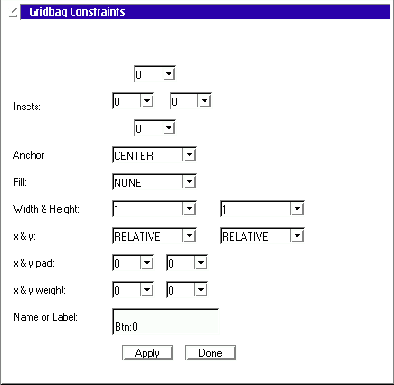
The same dialog on a Sparc 5 high resolution monitor running Solaris
OpenWindows is shown here
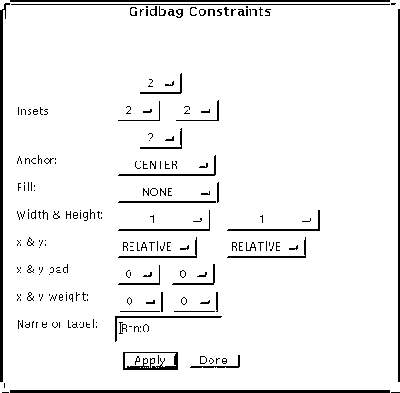
You can see that despite the differences in the way some of the widgets
look that the general look and feel of the dialogs is almost identical.
About the Screen Designer application.
The Screen Designer is a Java application that you can use to place widgets in various layout managers. Java-powered operating systems can run it by invoking the Screen class. You can run stand-alone Java applications in a browser with Java support. Obtain a copy of the AppletButton code from Sun Microsystems - Java , also published in Java Tutorial: Object-Oriented Programming for the Internet by Kathy Walrath, Mary Campione (Published by Addison-Wesley Pub Co Publication date: August 1996 ISBN: 0201634546). This lets you run a standalone Java application using the applet tag in an html document. The Screen Designer does not work correctly under some of the early ports of the JDK. However it runs reliably under Internet Explorer and Netscape Navigator on the several versions and platforms I have tested.
Starting the design is as easy as selecting a widget from the menu and dragging an outline. Once a widget is drawn you can erase it with the edit menu. You can modify some existing widgets but you cannot move or resize them. Commercial screen building products will let you resize and move the widgets on the screen using drag and drop methods. I didn't write the additional code to do this because that would obscure the simple aims for this application - to explore the effects of layout managers, particularly the gridbag layout manager. The code in example 1, Modifying constraints of existing widgets shows another way to intercept the mouse events. This allows the user to redo parameters for widgets already laid out, but it only works for widgets that forward mouse clicks. Labels, for example, do not forward anything. As a last resort, you can choose Edit / Undo and that will remove the last component in the container. The application will 'Undo' widgets until the screen is cleared. The Edit / Clear selection does this all at once.
Generating Source Code.
You can generate java source from your screen design. The source consists of a single java class, by default called XXX, that will instantiate an array of components, call a specific layout manager, and add each of the components to it. Example 2, "Invoking the Generated Class XXX" shows how to call this class from a subclass of a Frame.
Look at Listing AbFab.java that is a complete program to call the generated source 'XXX'. To design a screen and create and run a generated java program, follow these steps. First run the standalone java application by typing "java Screen", or use the AppletButton document described above. Select a layout manager and add, remove and adjust the widgets. When you are satisfied with the design of your screen, use File / Create Source. This creates "XXX.java". Next, exit the Screen application and compile XXX.java. Assuming XXX.java compiles cleanly, you can test the output by compiling and running "AbFab.java". If everything works okay to this point, you should be able to run AbFab as a standalone application. AbFab will display the screen you designed.
Adding a custom Control.
You can add your own custom controls to the Screen application. Consult a book like David Flanagan's book Java in a Nutshell (O'Reilly and Associates, Inc 1996) for information on how to code custom components. He describes a MultilineLabel component. Custom controls have their own paint method, but the preferredSize() and minimumSize() methods are used by the layout manager to determine the size and position.
There are six places indicated in Screen.java to insert the lines to
add a custom control such as the MultilineLabel component.
Adding a custom Layout Manager.
Aside from the layout managers provided by the JDK, with just a little work you can add your own layout manager to the Screen application. You have to add it to the layout menu and add code to respond to the Menu pick. You can use the code in example 3, "Code for a Custom Layout". This sets a global variable to indicate the Layout manager currently in effect, and sets it for the existing components. The "BuildIt" class uses the String "layoutConstruct" to print out the correct source statement. You may have to add some special code to the mouseUp() function, which is when the component gets instantiated and drawn. If your layout manager requires some special knowledge about the control, you will have to build a dialog using the ConstraintsDialog class as a model, or you have to infer some information based on where the user is drawing the control. This is how the Border layout derives the North, South, East or West parameter based on the mouse position.
Examples
public boolean handleEvent(Event e) {
switch(e.id) {
case Event.ACTION_EVENT:
if ((e.target instanceof Button) || (e.target instanceof Checkbox) ||
(e.target instanceof Choice) || (e.target instanceof TextComponent) ||
(e.target instanceof List)) {
if (LAYOUT == GRIDBAG)
new GridbagDialog
(this, "Gridbag Constraints", (Component)e.target, TOOL, init_x, init_y, LAYOUT); } ... ...Example 1. Modifying constraints of existing widgets
class subFreme extends Frame {
Component [] comp = new Component[256];
public subFrame() {new XXX(this, comp);} ...
Example 2. Invoking the Generated Class XXX
public void MyCustomLayout() {
LAYOUT = MYCUSTOMLAYOUT;
setLayout(new MyCustomLayout()); // build java source code for BuildIt:
layoutConstruct = new StringBuffer( "setLayout(new MyCustomLayout());");
validate();
repaint();
}Example 3. Code for a Custom Layout. Gallery Menu Sound Sculpture home